
Widget
Design the YourSizer size widget in the merchant panel — one system widget per audience and category, a try-on-only widget for accessories, copy a design across categories, preview, and install.
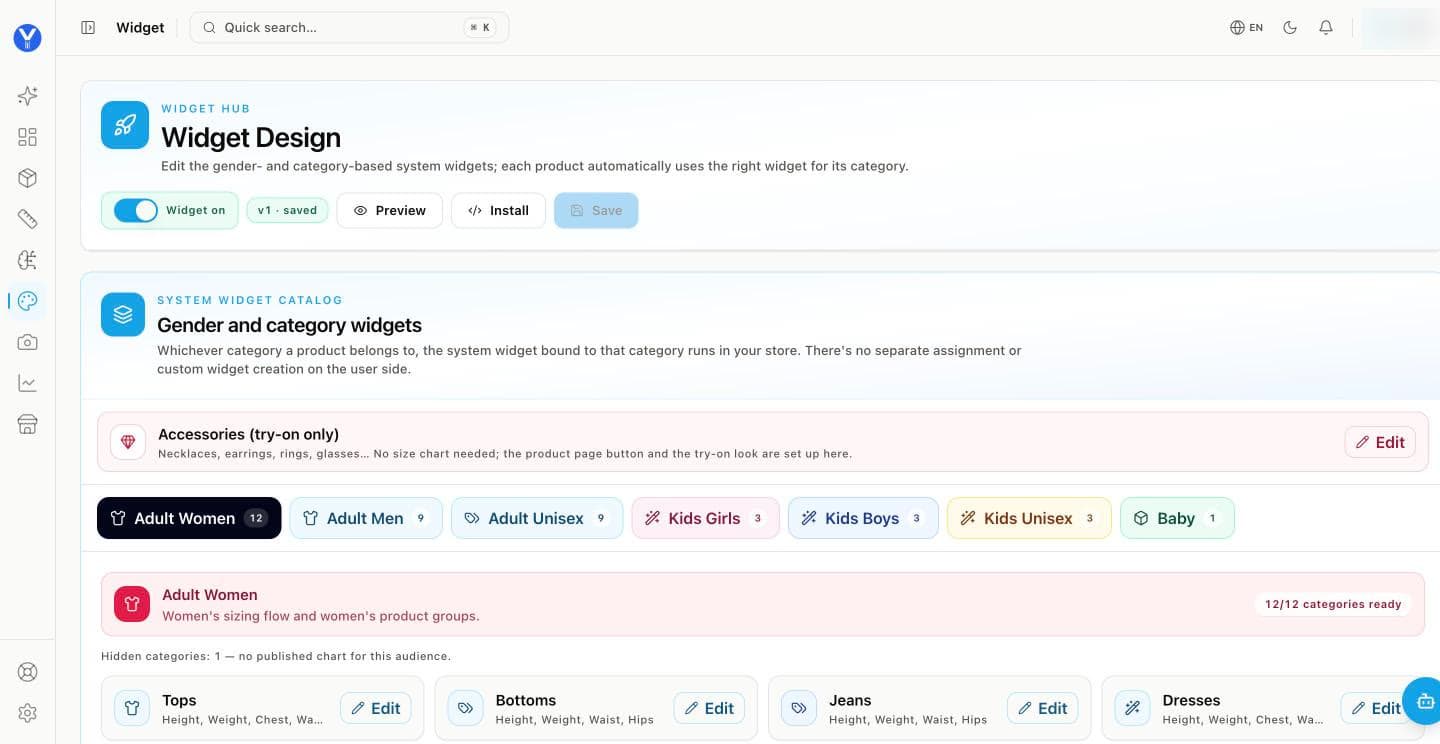
There is no widget to build from scratch. Each audience and category has its own system widget with the right measurement flow; you set how it looks and where it sits, and every product automatically uses the widget for its category.
What you set per category
Appearance
Trigger button
Placement and usage
The details
The measurement flow itself — which measurements, in which order — belongs to the category. A dress asks for height, weight, chest, waist and hips; a bra asks for band and bust.
Accessories: try-on only
Necklaces, earrings, rings, glasses — no size chart needed. The Accessories (try-on only) row sets up the product-page button and the try-on look for them.
Copy a design to other categories
Built the look you like for one category? Copy design applies it to others. Appearance, button, placement, scene, the calculating screen, social proof, branding and languages are copied; the measurement flow and size-chart settings stay per category.
Preview, then publish
Preview shows the widget as a shopper sees it.
Save publishes a new version — the badge shows v1 · saved, v2 · saved …
Widget on switches it on or off for the whole store.
Install gives the one-line script for stores without a platform integration. Script tag →
Built to sit on your store
The widget renders in an isolated root, so your CSS cannot leak into it and its styles cannot leak out. It targets WCAG 2.1 AA, is keyboard navigable, carries no meaning by colour alone, and on mobile opens as an edge-to-edge bottom sheet. It speaks Turkish, English, German, Russian, Arabic and Persian.